
On a Nano kick
Published on 2026-10-24
At first glance, GNU Nano is nothing special. It’s a basic editor that (depending on the system) takes up less than 300KB. It doesn’t have modes like Vim. It doesn’t have plugins. It doesn’t have fancy themes, LSP integration, or anything else that weighs it down. What it does have is line numbering, syntax highlighting, soft-wrapping on proper word boundaries, customizable keybindings, colors that don’t fight my terminal, and a simple configuration file.
After some modifications, it’s actually quite pleasant to use. I started with a sample file from here: Modern Nano Keybinding. Let’s go over the changes I made so far.
Basic settings
## Mouse integration
set mouse

## Auto indent
set autoindent

## Show line numbers
set linenumbers

## Wrap long lines visually
set softwrap

## Swap the title bar for a status bar at the bottom of the screen
set minibar

## Always display the cursor position
set constantshow

# disable help when you are familiar enough
set nohelp
By default, Nano has a little titlebar at the top of the screen, and a little help section at the bottom of the screen. With the minibar, constantshow, and nohelp settings, these are replaced with a single bar at the bottom of the screen that shows the open file’s name, the cursor position, and whether the file has changed.
The mouse setting enables using the mouse to select text and position the cursor. I don’t find myself using it very often, but it’s nice to have. The linenumbers, autoindent, and softwrap settings are essential features that really should be turned on by default.
Spellchecking and tab settings
## Use this spelling checker instead of the internal one. This option
## does not properly have a default value.
##
set speller "aspell -x -c"

## Use this tab size instead of the default; it must be greater than 0.
set tabsize 2

## Convert typed tabs to spaces.
set tabstospaces
When editing the vast majority of code, I want tabs to be expanded to 2 spaces for various reasons. There are exceptions to this, like project code style guides, Python, Makefiles, etc. For those cases, I have syntax-specific .nanorc files. The speller setting tells Nano which utility to use to check spelling. I never tried the built-in spellcheck, but aspell works well enough. As an added bonus, I can backup, restore, and share my personal dictionary with multiple programs.
Brackets, logging, and other stuff
The rest of my actual settings are simple quality of life improvements, like bracket matching, including _s in words, soft-wrapping on whitespace characters, and other stuff.
## The characters treated as closing brackets when justifying
## paragraphs. They cannot contain blank characters. Only closing
## punctuation, optionally followed by closing brackets, can end
## sentences.
##
set brackets ""')>]}"

## Enable ~/.nano_history for saving and reading search/replace strings.
set historylog

## The opening and closing brackets that can be found by bracket
## searches. They cannot contain blank characters. The former set must
## come before the latter set, and both must be in the same order.
##
set matchbrackets "(<[{)>]}"

## Do extended regular expression searches by default.
set regexp

# More settings

# `Home` jumps to line start first
set smarthome

# `Ctrl+Right` move to word ends instead of word starts
set afterends

# recognize '_' as part of a word
set wordchars "_"

# delete selected text as a whole
set zap

# soft wrap at blank chars
set atblanks

# remember search history
set historylog

# newline at end of file
set nonewlines

# read files into multibuffer instead of insert
set multibuffer
Theming
Theming works a bit differently with Nano. By default, its “color scheme” sort of already matches your terminal colors. That said, the color of specific UI elements can be changed with some simple set <thing> <foreground>, <background> lines.
# Additional appearance settings
set numbercolor yellow,normal
set scrollercolor grey,normal
Here’s what mine looks like.
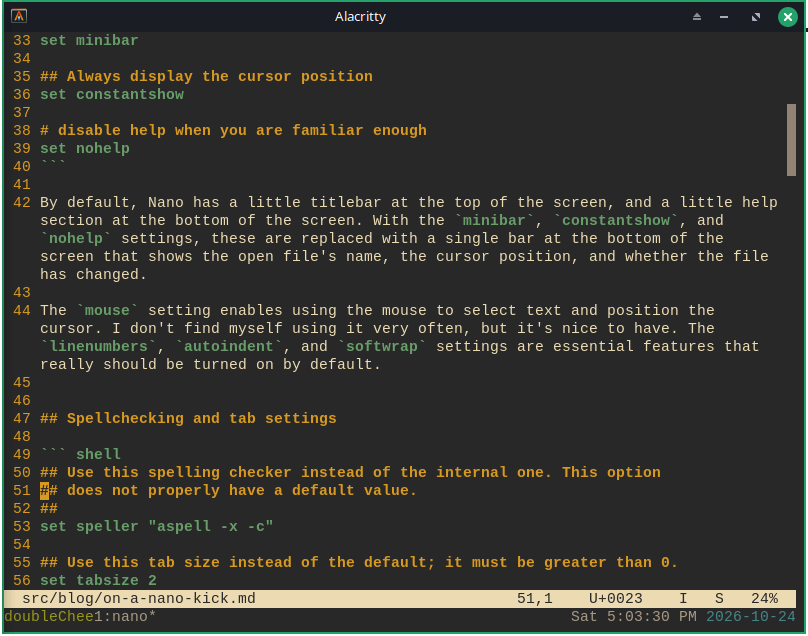
By default, the line numbers and scroll bar are drawn as black on white. Some people may also call this “reverse video”.
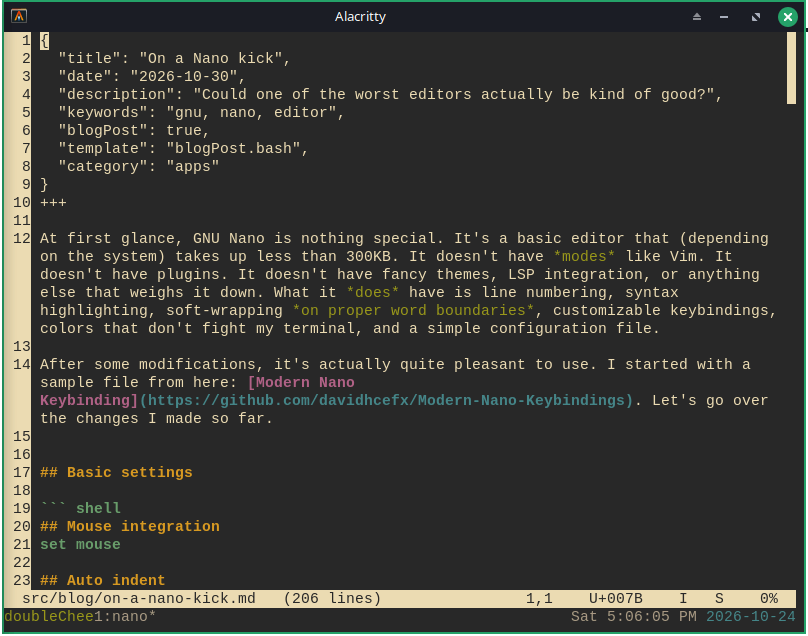
Yes, I think the first version with yellow and gray drawn over my existing terminal background looks better.
Keybindings
And finally, we get to the keybindings. The file I copied had some stuff that was specific to Mac OS, which I obviously deleted. The ones that are commented are what I’m currently messing with. The ones with the little hats next to them (^) start with the Ctrl key, and the ones with M- start with the Meta or Alt key.
# Keybindings
bind ^Q   exit          all
bind ^Z   undo          main
bind ^Y   redo          main
bind ^C   copy          main
bind ^V   paste         main
bind ^X   cut           main
bind ^K   zap           main
bind ^H   chopwordleft  all
bind M-/  comment       main
bind ^N   complete      main

bind M-C  location      main
bind ^E   wherewas      all
bind ^F   whereis       all
bind M-E  findprevious  all
bind ^R   replace       main
bind ^G   gotoline      main
#bind ^G   firstline     all
#bind M-G  lastline      all

# vim-like support
#bind ^B   pageup        all
#bind ^F   pagedown      all

# fix ^G been used
bind M-1    help        all
The keybindings I chose will look familiar to people who use word processors and other GUI text editors. I commented out the pageup and pagedown bindings because the PgUp and PgDown keys already work. Most actions actually have two keybindings. The primary ones are what you put in the config file. The secondary ones are bound unless overridden with something else. For example, the main help screen can be brought up with Alt-1 or F1.
The good, the bad, and the ugly
Bad stuff
Let’s start with the crap I don’t like. As far as I know, Nano doesn’t have a command prompt, and it can’t reload its configuration while running. Then again, my knowledge is a bit limited, so I could be wrong about this.
Now let’s talk about keybindings. I’m not going to sugar coat it. If I was using Nano without a programmable keyboard, my pinky fingers would be very unhappy.
Nano doesn’t support modelines. That means you can’t put commented-out settings for Nano to use at the top of a file.
And finally, there’s a double-edged sword: No support for custom commands. Or, to put it plainly, Nano doesn’t use any kind of scripting language for configuration. That makes configuration easier, but it doesn’t let you write functions to toggle multiple settings on the fly.
Ugly stuff
Selecting text works differently in Nano. When you select a word in Vim, the cursor stops on the last character of that word. When you select a word in Nano, the cursor stops just after the last character of that word. This important distinction threw me off when I first started writing this article because I thought it was going to copy or delete one extra character.
When you try to “correct” this behavior by moving the cursor back one character, you actually end up chopping off the last character of the selection.
Good stuff
Some people may disagree with me, but I prefer Nano’s built-in autocomplete feature over Vim’s. Instead of a little menu with a list of possible completions, it just inserts the completion. If you don’t like what it picks, you can just hold down the Ctrl key and tap ‘n’ (in my case) until you get what you want.
The simple configuration file is easy to edit, and it’s features are well documented. I also consider the lack of plugins a plus, because I don’t have to run a bleeding-edge version of Nano, deal with crappy documentation, or bog down my system with 100+ random NPM packages.
Sure, this limits what Nano can do on its own. But if we’re being totally honest, the functionality of a lot of popular Vim and Emacs plugins is best handled by purpose-built tools anyway. Nano doesn’t need to split the screen in a world with tmux and tiling window managers. NERDTree is nice to have, but Midnight Commander works better. Git integration is nice, but it’s not that much faster than using git commands directly.
Another really good thing about Nano is that it has a built-in comment/uncomment feature. With Vim, you have to type out a search and replace regular expression to put the language-specific comment character(s) where they need to go. To uncomment a chunk of code, you have to write a different regular expression to remove the comment character(s). With Nano, you just hit (in my case) Alt+/ and it does all of that for you. I tested it with HTML, JS, C, shell code, Lua, and Lisp.
Conclusion
I got the initial config file from here: Modern Nano Keybinding. Then I got rid of the Mac OS stuff, moved some comments around, and changed some keybindings. I’m not done messing with it because there are other options that can be enabled. But spellcheck works with aspell, I bound to undo and redo commands to something more sensible, and I made the status bar more Vim-like.
It’s still a work in progress, but it serves my needs for now.